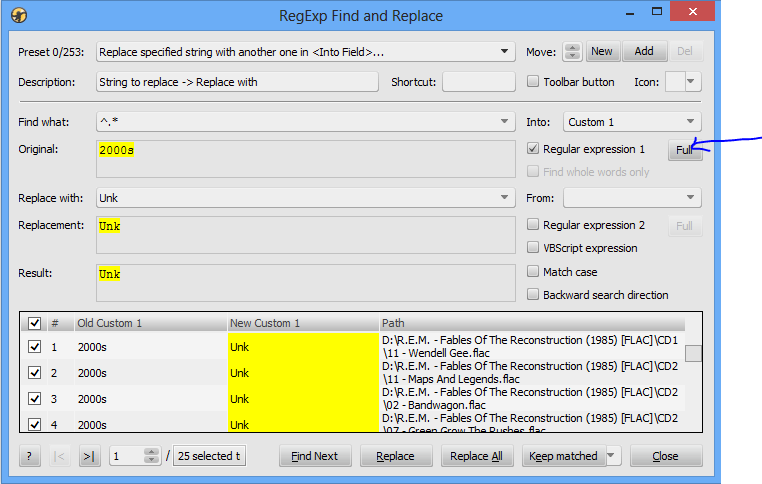
linn wrote:it would be so much userfriendly if it would be simpler to find a preset.
Yes, I am aware that this script is not very user-friendly when it comes to finding presets. I am already working on a possibility to make grouping of presets easier, but it would help only to find presets in the menu, but not in the F&R dialog box. I am not sure how could I modify that dialog box to make it simpler. I don't think that navigation using preset's number would be any more user-friendly than it is now.
I could give you just few suggestions, some of them are trivial and you may already know about that:
- remove all presets that you don't use, the shorter list is easier to navigate and you could always import some missing preset if you need it from the RegExpReplace.ini file in the Script folder;
- move all favorite presets to the begin of the list;
- group presets by similarity, e.g. put all "track number" presets one after another;
- if you already know the name of the preset you are looking for, maybe it would be easier for you to find it if you sort the list alphabetically: open the RegExp Presets Export/Import dialog box and click on the table header to do that, but keep in mind that this operation is irreversible, so it is recommended that you previously export all your presets to some .ini file;
- navigate through the Preset dropdown list using the Up/Down keys on the keyboard, maybe it would be faster for you than using the mouse and scroll bar;
- if you just want to edit some existing preset, finding of it would be much easier in the table of the RegExp Presets Export/Import dialog box than it is in the dropdown list in the RegExp Find & Replace dialog box - just click on its number in the table and you would get the similar dialog box as the RegExp Find & Replace for manipulation of presets.
By the way, gggirlgeek already made one custom RegExpReplace.ini file with modified names of presets with added serial numbers in the front which could help navigation by numbers (
http://www.mediamonkey.com/forum/viewto ... 19#p333519). Unfortunately, the link to that file is not working anymore, so you could try to send her a PM asking for it.
Of course, you could make such modifications all by yourself. Here is the short description how to do that much faster than editing the preset names in the F&R dialog box one by one. Firstly, you should install some text editor with good RegEx engine. This example is with EditPad freeware version which has such possibility:
- open RegExpReplace.ini file;
- choose Search|Show Search Panel;
- turn on Regular Expression;
- type "Preset(\d+)=Name: "" in the Search field (without double quotes on the ends);
- type "Preset$1=Name: "$1) " in the Replace field (again, without double quotes on the ends);
- choose Search|Replace All (Ctrl+Alt+F3);
- save file.